Showing posts with label portrait. Show all posts

January 16, 2024

David Lynch vector portrait


This vector portrait of film maker, painter, actor, visual artist and musician David Lynch, who has become renown by his movies - The Elephant man, Blue Velvet, Mulholland Drive, Wild at Heart, Dune, Lost Highway and Inland Empire. He probably has become most famous by cowriting and directing the intriguing TV-series Twin Peaks. All his cinematic work has a surrealistic touch, which is a clue to his knowledge and mindset that goes far beyond and above those of common people. This vector portrait was created in Affinity Designer and at this point - January 2024 - still is a work in progress. At the bottom is the oldest phase and the most recent stage is at the top. On PC and Mac desktops click the images to view them in Google's Lightbox, that also allows to scroll through the various stages. On mobile devices this scrolling option sadly is unavailable.

In Affinity Designer there are what Serif calls 'Vector Brushes' that actually are based on bitmap images. So, this in fact is not a 100% vector portrait. Users can draw these brushes themselves in vector format, that are exported as png-files. For almost every 'vector' portrait, drawing specific brushes have to be created, since no hair strand or pore texture in a person's face are the same. To such brushes Gradient Fills and Gradient Transparency effects are applied and sometimes they are Duplicated using Filters (below the Layers panel) that in some cases are offset, re-sized, skewed or mesh warped a little. In a number of cases it helps to apply the 3D lighting effect - highlights and outer shadows - to these brushes too. In the Gradient Tool there is an option to use bitmaps as the fill, which also is useful to achieve the desired effect. To these type of fills the same effects can be applied as used to manipulate the Vector Brush strokes.


I dusted off my old trusty Huion 610 Pro graphic tablet to draw some of the hair strands, which is suited to do part of the job using self designed brush textures (that technically are not real vectors). In vector drawing programs, like Affinity Designer, it is a challenge to navigate and keep oversight on the ton of Layers that are created when drawing portraits. Assigning names to the key layers and grouping the in categories is necessary to prevent getting lost in a plethora of objects.


October 23, 2022

Exploring VectorStyler - Part II


Introduction
After losing the files I saved on a network drive in VectorStyler, as stated in the previous blog entry, I decided to save them on the system drive, which in itself worked well. The problem is that my computer is too old and lacks the power to properly create advanced graphics - realistic vector portraits - as I found out this time with exporting the various stages of development in the png-file format. My old rig has a first gen i7 Intel CPU from 2008 (....), has dead slow 16 GB 1333 MHz RAM memory and an extinct NVidia GeForce 750 Ti, which in today's world probably is considered to be a prehistoric system. I am therefore considering to upgrade to the Minisforum Neptune HX90G with an AMD Ryzen 9 5900HX CPU, 64 GB RAM memory and a M2 512 GB SSD, that has a dedicated GPU - the Radion RX 6650M, while taking up very little space (2.8 liter case). I prefer this x486 AMD mini PC over its Mac competition, because it offers the right to repair and upgradability, plus the fact that the software I purchased, is written for the Windows platform.

The reason that I continue to experiment in this constantly updated, ongoing blog entry with VectorStyler in spite of the problems I encounter with running the program properly, is that it has an absolutely huge potential and many of its incorporated functions already work excellently, while some still require a bit of tweaking. Its developer - a single person, named Csaba Ráduly Baka has so far done a most outstanding job creating and developing the project, in a way that made me convinced of the fact that at some point the bugs will be written out of the code and even more new features will be added. So, this series of blogposts is an on-the-fly test / review / in depth exploration that will last as long as VectorStyler will continue to be developed into a mature state, even when I may encounter additional obstacles.


Export Problem & portrait stage sequence
Because I was unable to export the vector portrait in png-format properly, I made screendumps so that I can still place the progress sequence of the various stages of development in this blog entry. The most recent one is at the top and the oldest one is at the bottom. Where necessary I will enter a comment below the screendumps in addition to the image captions. One crucial aspect of my drawing technique is that I place the reference image on top of all other objects and make it transparent, so that it is easy to retrieve whenever necessary, while its transparency can be changed whenever I temporarily need a more clear image. This is useful especially when a drawing contains hundreds or even thousands of (clipped: objects inside of other objects) objects. From what I have seen in tutorials on Youtube, most artists place the reference image or photo below all others, but for me this does not work for the reason mentioned here.

When the portrait is completed, I will post the vstyler-file in the VS forum, for fellow users to inspect. Note: all photos of Maria Orsic on the Internet are a kind of grainy and jagged black & white type of images, that probably do not do her beauty justice, but I do my utmost to make the best of it. The lack of quality in the photos implies that I was forced to interpret aspects of her face in order to be able to create a portrait that includes the attributes of a realistic depiction of a person. In addition I permitted myself the liberty to lean towards a personal elucidation of miss Orsic' stunning appearance, that also is known as 'artistic freedom', which is a style signature that is present in all the portraits I create.


Tools used in VectorStyler
An other thing is that I did not draw this portrait using the Mesh Gradient tool, which I feel is tedious and time consuming to work with, but I drew separate objects (most of which are clipped several layers deep and blurred, that I named accurately in the Layers panel so that I can find them back at a later point in time for further editing. Also, all objects that are drawn are vectors that will rescale and remain sharp in every size into which the image is rescaled, while the mesh tool is a simulation of pixels in vector format that requires a great amount of calculation when rescaling the image. For instance: many of the shadows consist of a single line with 2 (or in some cases a few more) nodes that probably require less computing power when the image is being rescaled. Editing objects at a later point in time, I find easier also when they are separate objects, each of which can be tuned to what it needs to be, which is especially useful when balancing shapes and colours when an image is in the final stages of the design process.


Brief tutorial on creating objects with varying blur levels
I uploaded a brief tutorial on the VectorStyler forum on how to create objects that have areas of varying blur level ratios along their circumference, that is a technique I often use in drawing realistic vector portraits. The usual type of vector portraits created in Adobe Illustrator almost always have hard edged areas (shadows, creases, hair, facial parts like eyes, ears, nostrils, eyebrows etc.) that make them unrealistic, even though they are presented as realistic vector portraits. Adobe's marketing department has managed to successfully sell Illustrator's shortcomings as a feature and, as commonly is the case, the ignorant majority of the market fell for the carefully concocted scam. An example of such an awful portrait you find here. No offence, but I don't think these portraits qualify as realistic, nor do they deserve to be the maistream standard in that conjured category. But as long as most people prefer to think with their spinal cord, such basically ridiculous type of 'artwork' will be considered to be 'great' by those that have no clue of what greatness is. I have been creating realistic vector portraits for years now and examples of what I mean by that can be found in my website; those portraits hardly have any hard edges, which is exactly what does make them realistic. The process described in this blog entry is the first realistic vector portrait that I drew in VectorStyler - the ones on my website were created in Affinity Designer. I am seriously considering switching from the latter program to the former one mentioned in the previous sentence, which is why I am creating the portrait shown below as a test.
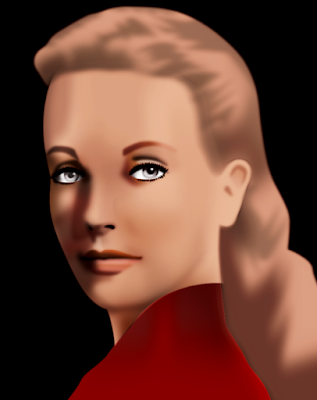


Added the darker areas in the hair and began drawing the left ear

In spite of the calculation / rendering problems my computer presents me, I decided to do a little more drawing. The old machine causes the program to freeze often and say that it is not responding (which lasts up to several minutes at best), but I was dissatisfied with the appearance of the previous stage. In this 12th stint I drew some darker accent areas in the hair, so that at least there is a hint into which direction I am taking this 100% vector portrait. Also corrected the lower eyelid of the right eye. I still need to tweak the colours, intensity, gradients in these areas and add more detail, but I'm afraid that would be challenging this archaic device beyond its limits. After the Minisforum mini PC has arrived and has been set up, I will continue to explore the superb Vectorstyler by way of this project.
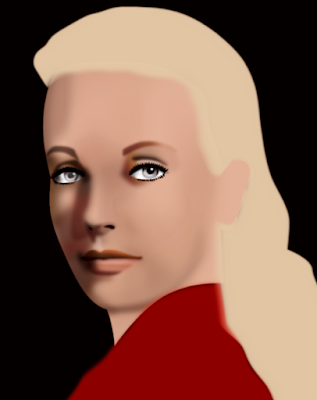


Added some more shadows and drew the hair base

At this point the program on this very old computer is behaving very strange, which probably is the result of a dramatic lack of computing power, even when all other programs were closed. I ordered a new computer as described above and will continue when that one has arrived. The hair was done according to the technique I described in the seventh stage. It allowed me to draw a gradual transition area between the hair and forehead. The accents in the hair could not be rendered, which confirmed my suspicion that my machine simply was unable to handle the computations.
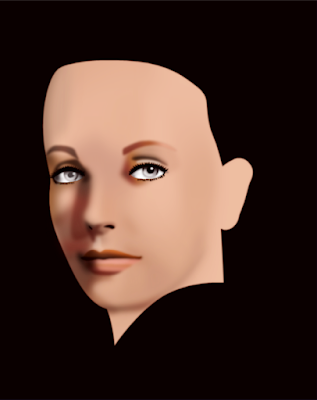


Tinkering with shadows on the face

Applying subtle shadows on a face, probably is one of the challenges of creating portraits. If a shadow is off just a minute amount in colour, intensity or blur ratio, there is a risk that entire portrait goes down the drain. So, this took me longer than I expected and I still am far from done. I discovered that in the gradient colour tool each node can separately be given a colour but also an opacity level. Nodes can be added by clicking on the gradient indicator line and typing '+', they can be removed from it by simply dragging the node off the line. Very intuitive. The easy way to draw subtle accents probably is to clip one area into an other (several layers of clipping) which also works well and is easier to control. I will try that in the next stage. In the previous stage I wrote that I wished the blur ratio had a bigger range until I discovered that the interactive tool includes nodes on the top and bottom of the reference circle to adjust the range, which is virtually without limit, unfortunately only in one direction. The developer Csaba Ráduly Baka must have advanced artistic skills besides being a brilliant programmer, because these functional details would never have been considered for implementation by a brilliant programmer who has no artistic skills or too little of them.
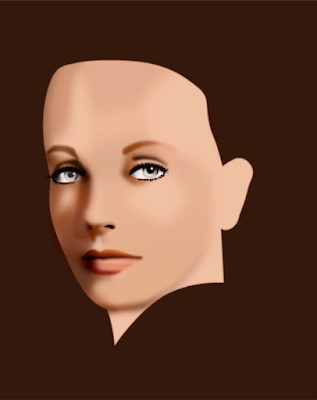


Added base shadow on mid and left site of the face

This is the seventh stage already. Edited the mouth somewhat. Tweaking the big shadow until I became senseless - with the blur ratio tool (which I wished would have a more extended range), opacity and gradient colours with a proper number of nodes. Probably some clipping of additional objects will be necessary to get things right. I uploaded a tutorial on how to create objects with a varying level of blurriness along their edge in the VectoStyler forum. Had I been more proficient with gradient colour editing (which is present in VectorStyler) I would probably have used it, but to be honest I dislike that tool from my experience with it in other drawing vector programs. I do like the mesh gradient transparency tool, but I still need to  practice it more in order to efficiently use it. I have to leave the image alone for a while and return to it at a later point in time. I'm sure artists are familiar to this type of situation in which the proper settings just elude them, while that seems to be no problem further into the future (I hope). Part of this problem is caused by the fact that I drew the shadow in one piece, in order to minimize the number of objects, which does not always work...... Also, my ancient rig is beginning to struggle, so purchasing a new, more powerful one kind of climbed on my bucket list. First I have to check the budget though, since being able to buy food is important.
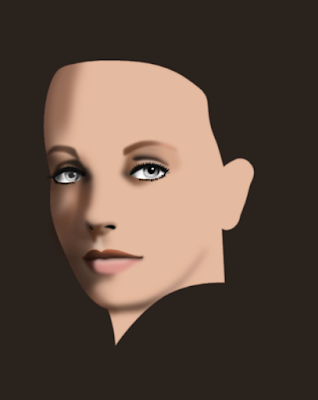


Experimenting with dark background

Editing colour intensity of the blurred shadow area at the right side of face mainly to see how that would appear against a dark background. Most of my vector portraits have a transparent background so that I can place them before any type of background and change my mind whenever it seems appropriate to do. Colour balancing therefore is important.
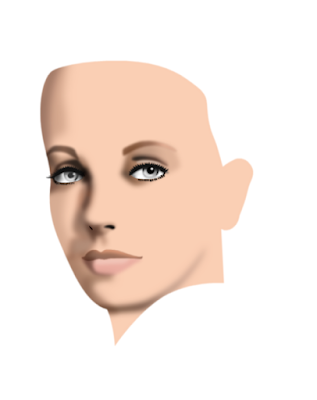


Added mouth and chin line

Besides working on the mouth and chin area and correcting mistakes in the eyes area, I have begun experimenting with mesh transparency, which is an absolutely brilliant function that is present in none of the programs competing with VectorStyler. I will need this function at a later point in this design, but I don't feel familiar enough with it to apply it already. It is just one of the many functions offered by VectorStyler that devs of its competition have not figured out yet how to code. Still a heap to learn for me!
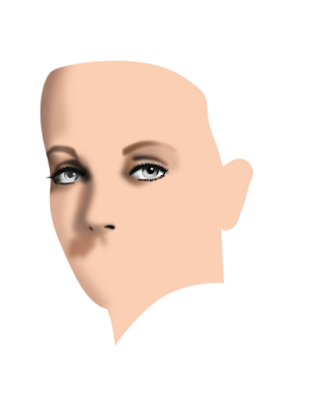


Added shadow to the right side of nose

While tweaking the left eye VectorStyler froze and offered a weird message without saying what was wrong. After closing the program and restarting it, I was offered the option to retrieve a back up, which worked just fine. Immediately the developer responded on the forum and reported a bug. This type of swift support I have never experienced anywhere in my long involvement with software. Great!
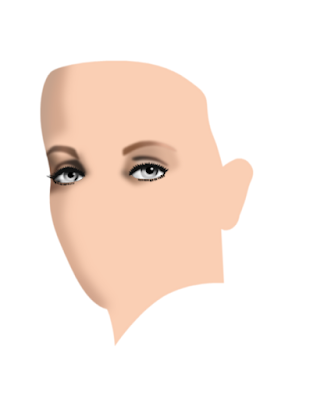


Added shadow on the right side of face

Besides adding the shadow on the face' right side did some tweaking of the right eye. Shadowing requires a subtle approach, both in intensity, giving objects a blur ratio and applying colour accents. There still are details that bug me, but I am sure that I will get them sorted out at some point, as I become more familiar with VectorStyler.
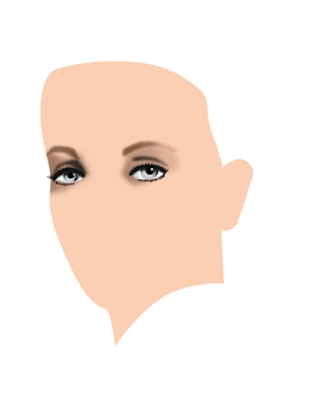


Added right eye

Copied left eye to the right. Reshaped elements with the move- and node tool. Adjusted colour accents and lighting, mainly in clipped objects. Renamed copied left eye objects to right eye parts in Layers panel, this because there already are many objects in the drawing that I need to retrieve at a later point in time for further editing, when looking to rebalance colour intensity, because in portraiture moving and reshaping (parts of) objects just a few pixels determines the quality of the likeness, as do do colour accents.
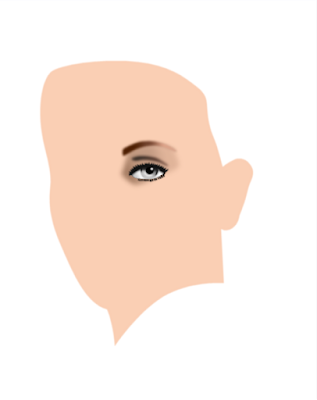


Added shadow behind the left eye

So far, I have mainly been using the Gaussian blur function, object clipping and interactive transparency, all of which work superbly. Many image effect functions - such as blurring - can interactively be fine tuned on the spot, which offers artists the option to exactly and instantly see the result of their tweaking.
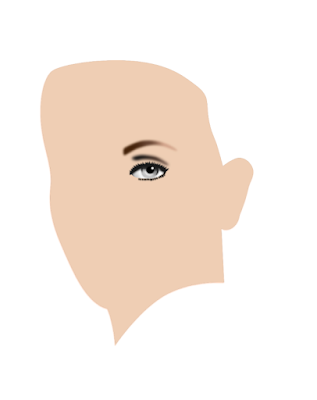


Started drawing the face contour and left eye

When drawing realistic vector portraits, I always start with the eyes, because they are the dominant factor in facial features. For drawing I use the pen tool and the node tool to fine tune. Most objects are given a Gaussian blur effect. Colour management in VectorStyler is very easy to use with great precision.


Stage 15 - vector outline


August 5, 2022

Vector portrait of Emma Britten

I originally posted this drawing in 2019, but kept on working on it every now and then (which is what I often do). Many artists are familiar with this method of working, because after 'finishing' a drawing, it is more often than not discovered that the image needs more adjusting and / or additional work. At times this is a repetitively occuring moment, especially with portraits, in which likeness can depend on moving objects 1 or 2 millimeters, changing their size or shape, skewing them or fiddling with their colours. Faces are the most prominent visual characteristic of a person, which is why there is not a photo of your foot in your passport or ID card, but one of your face.

Emma Hardinge Britten was a well known spiritualist who lived from May 2 1823 to October 2 1899. She was a writer, public speaker, musician and opera singer in her younger days to support her family after her father passed away when she was 11 years old. Her spiritual gifts brought her fame and she was frequently consulted by high ranking politicians, corporate leaders and other important people of her day. It is an indication that elevated echelons of society value the spiritual reality that is intentionally kept hidden from common folk.

This portrait is a work in progress and is drawn in Affinity Designer. This program has all the functionality to create realistic vector portraits that can be edited afterwards relatively fast which is a pain to do with mesh-filled vector portraits. And since tinkering is almost a necessity for portrait artists Affinity Designer is their ideal tool to make 100% vector portraits that can be re-scaled to any size without loss of quality. However, this work also contains vector brushes, which are not really vectors - more about this later.


Had to place this here or else the ugly
image below will show up in preview


What makes vector portraits look realistic is that edges of shapes and lines can be blurred in a controlled way. In addition color fadings can be customized in any desired way (using different colours) as well as the transparency of objects (in a linear, radial, elliptical or conical fashion). The combination of these 3 functions allows artists to create works that are visually indistinguishable from pixel portraits, but - as stated before - can be produced in any desired dimension while retaining the original quality.


Ugly Adobe Illustrator attempt (no offence) to
create a realistic vector portrait, b.t.w., this
is caused by Adobe Illustrator's limited
functionality to create realistic art.


Outside of Affinity Designer only the magnificent free open source program Inkscape (which a difficult to learn UI) has similar features, be it that some of them are difficult to find in Inkscape's UI; CorelDRAW and Adobe Illustrator do not have object blur functions, except when converting objects to bitmaps first, and can not be converted back into vectors. These programs are therefore not suited to create realistic vector portraits, other than with the hideously tedious mesh-fill tool. The portraits not made with the mesh fill tool are very unrealitsic looking portraits with hard edges, as is shown in the image above. Adobe's marketing department has tried to turn this into the standard for vector portraits (in which it obviously succeeded) by suggesting that the programs shortcomings are some sort of artistic oddity that they turned into an alleged type of feature. But no matter how one looks at the result, these are not realistic portraits of high quality; they are at best a visual metaphor of realism.


This is the custom vector brush
created to draw realistic strands
of hair. This can be imported in
your collection of brushes and
used for this specific purpose.


This is the custom made brush used
to paint skin pores. Mix dark strokes
and bright strokes combined, the latter
always on top in the layer panel.


Apply 3D and or Bevel / Emboss fx
to the textured brush strokes to
create a realistic skin pore texture
and fiddle with the brush properties
use custom colour and transparency
overlays and underlays, whatever it
takes to approach realism as much
as reasonably possible.


So below you see a realistic vector portrait created in Affinity Designer. Bear in mind that at this point (September 2019) you are looking at the early stages; it will become more realistic as more work is done to the image. Skin pores and detailed strands of hair in particular will be applied. For the hair texture I created a custom brush that allows to create realistic strands, both dark and bright. The oldest stage is at the bottom - more recent stages are placed above that. Click on one of the images and they will be shown in Google's Lightbox, which (on a PC anyway) allows to scroll through the various stages to quickly see and compare the changes. The original size of the portrait in which it was drawn, is 80 x 62 cm, approximately ten times larger than the images submitted to this site.

Mind you - as I found out later - vector brushes in Affinity Designer do NOT create vectors, but are pixels created inside of a vector drawing program, that will remain bitmaps. So when creating realistic art with Affinity Designer, be sure to make large images in order to avoid blurring and jagged edges when using 'vector' brushes, if the intention is to make large prints of the image.


September 20 2019 00:09 virtually in 3D frame


September 20 2019 00:09


September 16 2019 stage 12
vector curves & Brush strokes
outline view (hugely helpful
in the process of drawing)


September 12 2019 11:50


September 11 2019 11:01


September 10 2019 17:20


September 9 2019 20:13


September 9 2019 16:43


September 9 2019 12:20


September 8 2019


September 8 2019


September 8 2019


August 19, 2021

Geronimo - from analog airbrush to digital art


In the previous century I was deeply involved in the Dutch airbrush scene and sprayed a lot of portraits, in which a returning preference was the airbrushing of Native American chiefs and warriors. Some of those portraits were not finished or could use improvement. After the turn of the century I leaned more towards creating digital art and not too long ago I decided to rework the old portraits with digital means. One of those is the portrait of the famous Apache chief Geronimo of which you see various stages below.

While airbrushing with airbrush guns and paint I usually used the Iwata HP-BH airbrush gun and various paints, mainly Illu-Color and later Inspire H2O waterbased paint. In the digital episode of my life I initially used CorelPaint until that program began to crash more often than not, particularly when exporting work to the png format from Corel's cpt format. Some 5 years ago I accidentally ran into the Affinity suit and changed to Affinity Photo for pixel editing.

I gave the document a look that suggests a canvas background in Affinity Photo that I thought matched the portrait better. This is easy to do in Affinity Photo by using various Filters and Layer Effects. Digital art creation allows to make many different versions with different feel relatively easy, while printing techniques have evolved to a stage that makes it difficult to distinguish analog from digital art. In the case of this portrait I could for instance, choose to have it printed on canvas and give it a lacquer layer, which would give a convincing impression of authenticity to the observer.

I still like to pick up the Iwata's every now and then, but today my main focus is on digital art creation. It is an entirely different way to work, but unlike many airbrush purists, I like to endlessly fiddle in the software that allows to infinitely apply changes without the headache that that the traditional analog trade forces artists to make. The oldest stage - the unfinished analog airbrush - is at the bottom and the various digital tinkerings are above that. Click on one of the images to see them in Google's Lightbox that allows to flick through the images by turning the mouse's scroll wheel.


Fourth digital stage


Third digital stage


Second digital stage


First digital stage


Unfinished analog airbrush portrait


September 25, 2019

Changing Native American portrait

I used to airbrush a lot - the analogue type in which a real metal airbrush is hooked up to a compressor to spray real paint on a real surface. That started in the early 80's of the previous century and lasted until approximately 8 to 10 years ago. After that I became more interested in digital image creation and manipulation, also because the programs became better and allowed to approach the quality that traditional airbrushing did. Today, the quality of the digital image creation programs has surpassed the traditional way of working in the sense that it is able to create more accurate detail that, in addition, can be edited endlessly.

I used to mainly use CorelDRAW and Corel PhotoPaint for my personal projects and during the day worked professionally with the Adobe products in the office. Sometimes I used Illustrator and Photoshop for my personal projects as well, but I always found their programs way overpriced. Things got worse when they imposed their subscription model on their users after which I switched to Serif's Affinity Designer (vector drawing program) and Affinity Photo (pixel creating and editing program). I accidentally ran into these programs when aimlessly browsing the Internet.

I've truly fallen in love with the Affinity programs that both cost about 50 USD that give you ownership of the programs and 3 free updates.... That is a whole lot more affordable than the programs in the Adobe suit. Designer and Photo are developing well - bugs are continuously removed and functions are added - which causes them to almost be on par with AI and PS functions wise, while having surpassed them in a certain number of aspects. I may elaborate on this in a future blog entry. In addition Serif issued Affinity Publisher which is and InDesign competitor. Already now Publisher is sufficiently equipped with functions to do by far the most DTP work very well while only lacking compared to ID in very specialist areas like interactive digital publications for instance. But artists that work in that type of document creation are relatively small numbered.

OK, back to what I was going to express here. Sometimes when I get bored, I tinker with images in Affinity Photo. In the old days I used to airbrush a lot of portraits of Native American people. But when browsing the web, it occurred to me that many artists create portraits of the same people, simply because there weren't too many photographers to record faces of Native American people in the old days. In order to create a unique face one has to be created from scratch or an existing one has to be changed so that it looks nothing like the original, trying to preserve the ethnic facial traits of the subject. Gertrude Kasebier and Edward S. Curtis are two of the best known magnificent photographers who shot a large number of great Native American portraits. But in their day, it wasn't like everyone had a camera on their smartphone like people have these days. It is why a relatively small number of genuine photographs of Native Americans exist.

So when I find a photo of a Native American person that I potentially would like to airbrush, but I find elements in their facial traits that I would like to change, I load the photo into Affinity Photo and start tinkering. Some would say that this is historic fraud, which in fact is the case to a certain extent, but that could also be said of the paintings of the brilliant Howard Terpning who I am sure interprets some things according to his personal vision (which is what makes his art so awesome). Personally I enjoy watching Terpning's work. Perhaps a little more and focused on details than the average person, because I want to know where the beauty of art is hiding in the details.

Below you find a brief sequence of me changing a portrait that I found on the web. At the bottom is the original photo. Above that the alterations made in Affinity Photo - mainly using the Liquify Push Forward Tool in the Liquify Persona. The image above that shows more detailing done with the Paint Brush Tool (using a textured brush), The Blur Brush Tool and the Clone Brush Tool. I also used the Color Adjustment and Curve Adjustment filters to make the image more crisp and dramatic. Finally I placed the edited image in a frame in the 3D program Rhinoceros v5 as show in the image at the top. I enjoyed doing this piece of historic fraud that I think turned out quite well considering the original photo was small and of a low resolution (600 x 938 pixels), while damages were present both in the face and in the background.

Tip: click on one of the image and it will be displayed in Google's Lightbox. If you are on a PC (also possible on a Mac I presume) you can turn the scroll wheel of your mouse and flick through the images to compare them.


Placed the edited image in a virtual 3D frame


Image edited with Paint-, Blur- and Clone- Brush tools
to add detail and Colour and Curve Adjustment filters
to make the image more crisp and dramatic looking


Photo edited with the Liquify tool and
Blur tool to remove jagged edges on areas


Reference photo, which was small, low res,
damaged and jagged